YUM – Yellowdog Updater, Modified-
YUM is a package management utility for RPM-based distributions. RPM (Red Hat Package Manager) is the package manager that systems like RHEL and CentOS are based on.
YUM uses RPM under the hood, hiding its complexity through a high-level abstraction.
Fedora 22 and RHEL 8 introduced a rewrite of YUM, called DNF, which is likely to become the new standard for RPM-based systems.
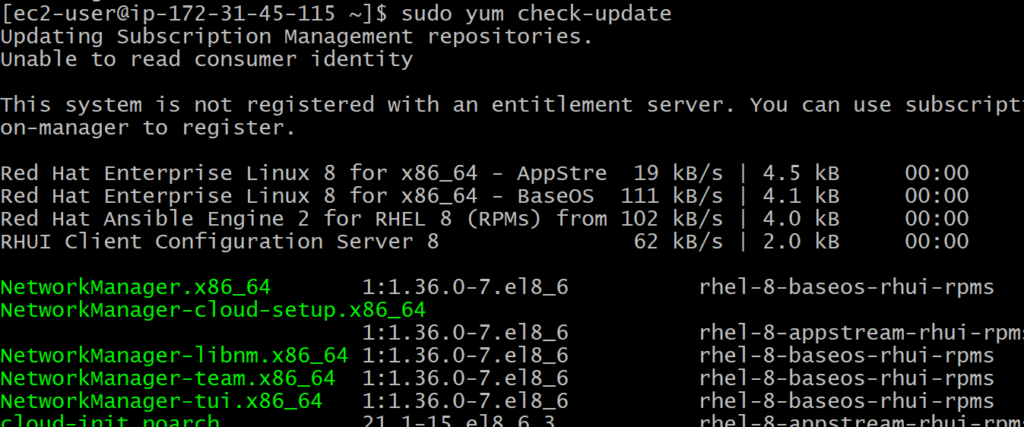
How do I check if there are any packages available for update
sudo yum check-update
How to install a particular package?
sudo yum install vsftpd -y

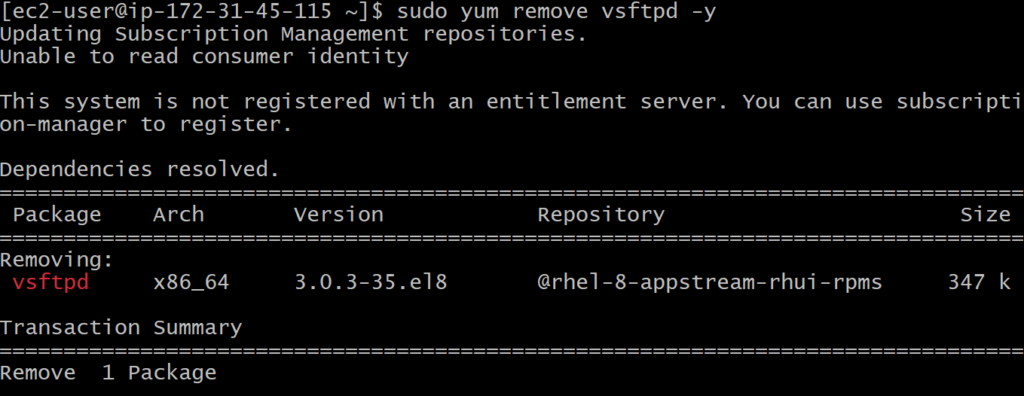
How to remove a particular package?
sudo yum remove vsftpd -y
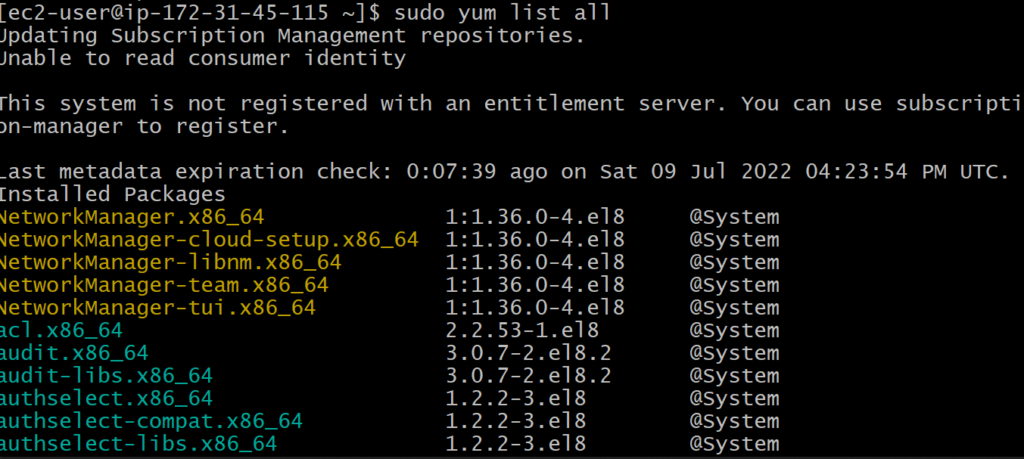
How to get a combined list of all the packages?
sudo yum list all
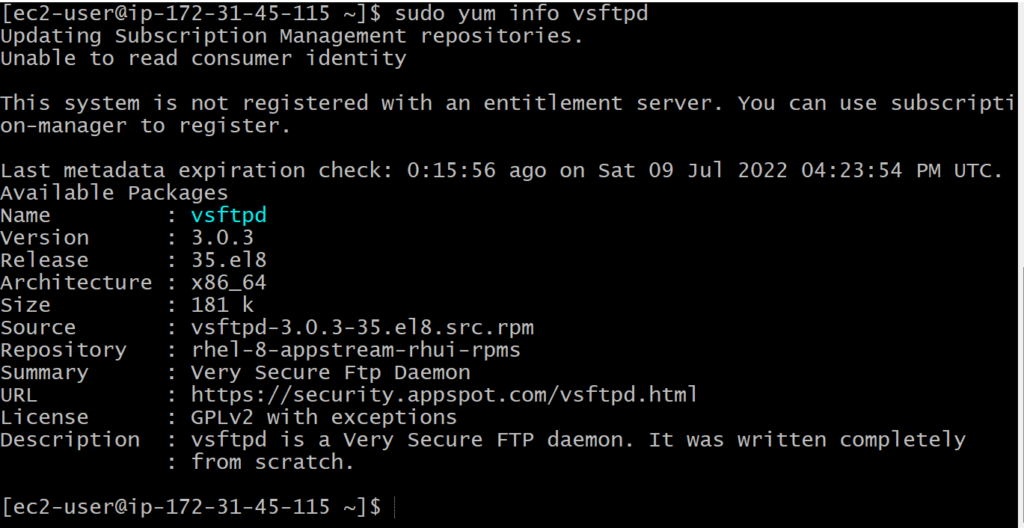
How to find out detailed information about a specific package?
sudo yum info vsftpd
How to clear the cache information from the cache directory?
sudo yum clean all

How to upgrade the system with the latest releases?
sudo yum upgrade -y
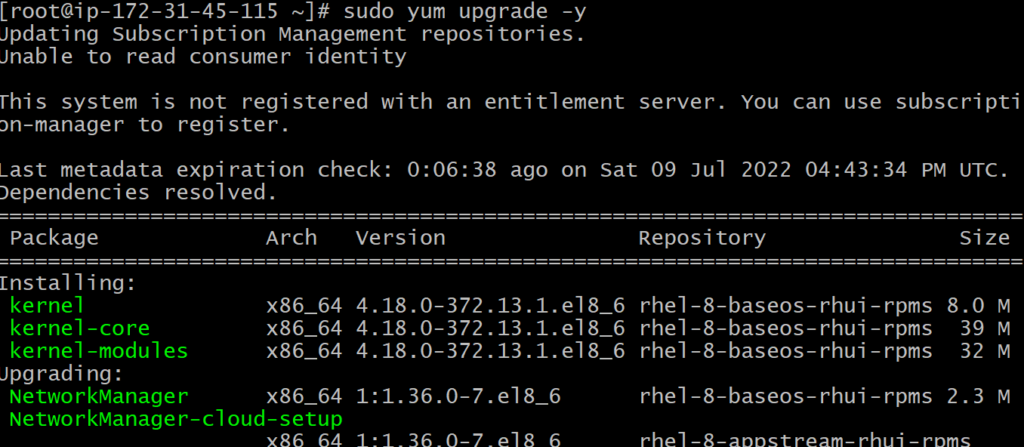
How to view the repository details/information?
sudo yum repolist all

APT – Advanced Packaging Tool
APT, on the other side, is a collection of different tools used for managing software in DPKG-based distributions.
DPKG means Debian PacKaGe and is the package manager at the core of systems like Debian and Ubuntu.
APT wraps the low-level calls to DPKG to provide the users with a user-friendly interface.
It’s worthy of note that APT is an acronym used in several different contexts. It’s the packaging system (APT), the Linux package under which it’s distributed (apt), and also one of the tools which form the library (apt, apt-get, apt-cache, and others).
How to upgrade the system with the latest releases?
sudo apt-get update -y

How do I check if there are any packages available for update?
sudo apt-get check
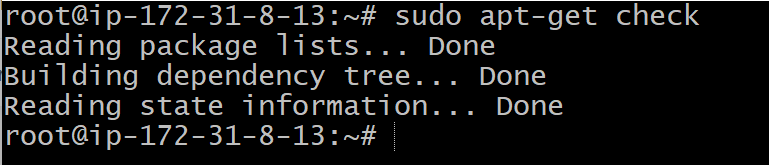
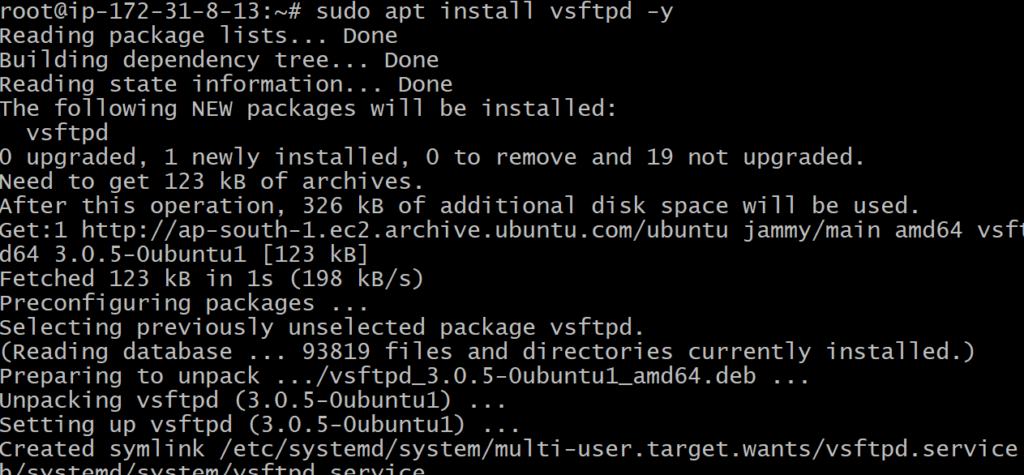
How to install a particular package?
sudo apt install vsftpd -y
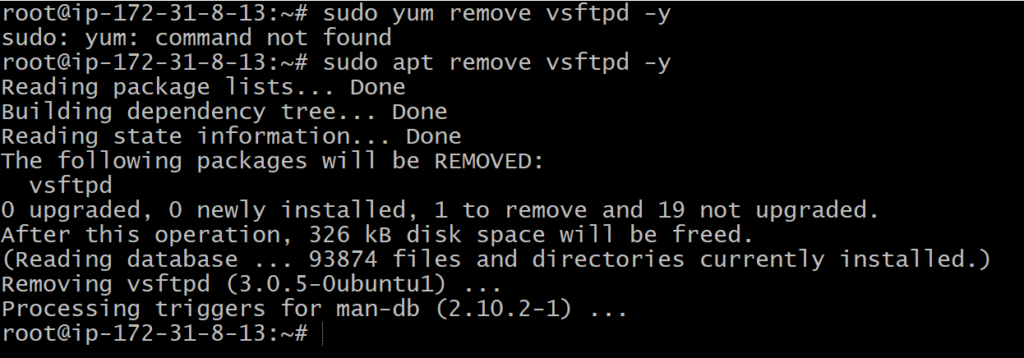
How to remove a particular package?
sudo apt remove vsftpd -y
How to get a combined list of all the packages?
sudo apt list
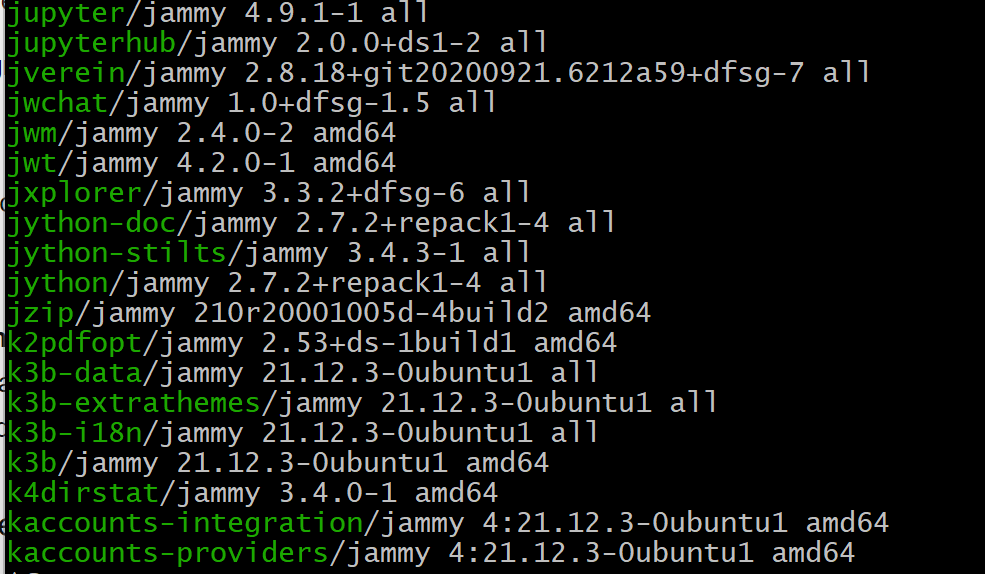
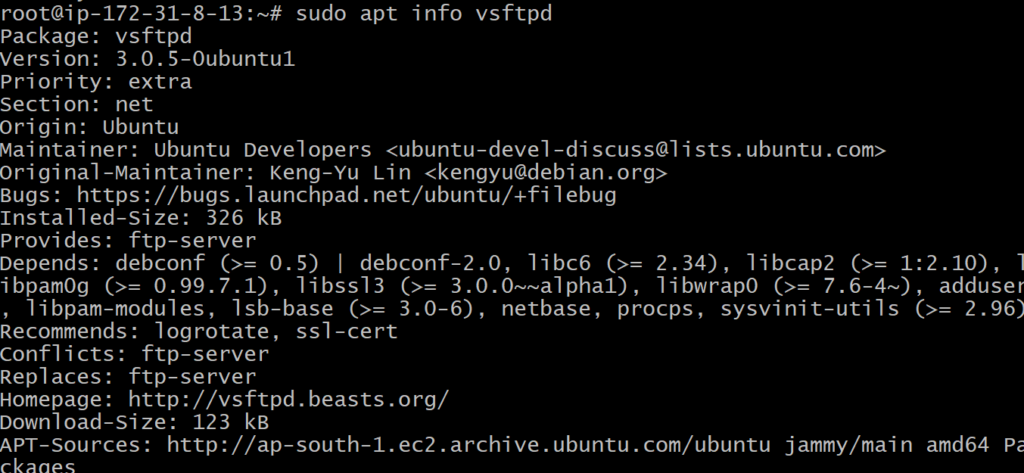
How to find out detailed information about a specific package?
sudo apt info vsftpd
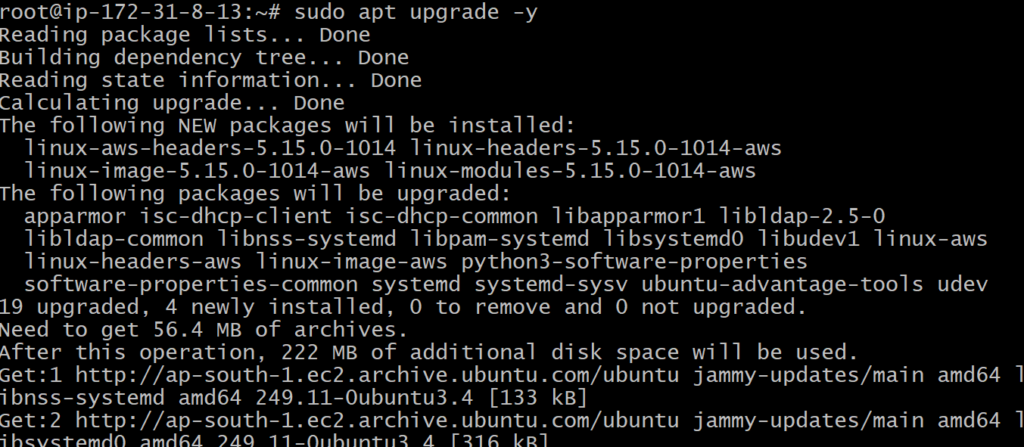
How to upgrade the system with the latest releases?
sudo apt upgrade -y
How to get a combined list of all the packages?
sudo apt list –installed

============================================================================
Service Management
A common task for admins is restarting services. Nearly any time admins make a change to a configuration file the related service must be restarted so it can reread the configuration file and integrate the changes.
Starting of Service
The systemctl command manually starts a service with the following command:
# systemctl start {servicename}
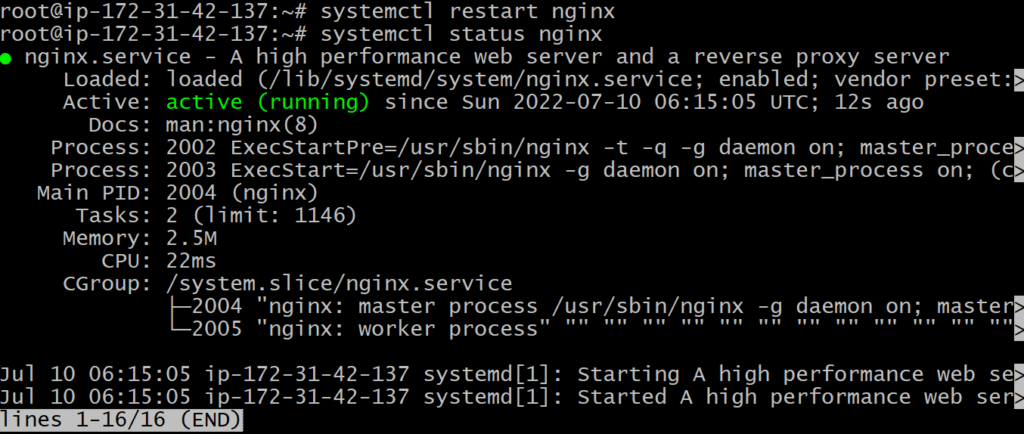
Status check of service
The systemctl command manually check status of service with the following command:
# systemctl status {servicename}

Stop a service
To manually stop a service with systemctl, type the following:
# systemctl stop {servicename}

Restart a service
Instead of manually starting or restarting a service, it’s faster to simply use the restart subcommand:
# systemctl restart {servicename}
Prevent service from starting
A stopped, or disabled, service can still be started if another service calls it. To prevent a service from starting in any case, use the mask subcommand. This links the service configuration to the /dev/null file.
# systemctl disable {servicename}
Enable a service
Starting and stopping a service only applies to the current runtime. What if admins need to configure the service to start when the system boots? The term for that action is enable:
# systemctl enable {servicename}

Disable a service
Likewise, if admins need to configure a service to not start when the system boots, they can type the following command to disable the service:
# systemctl disable {servicename}
