Linux cut Command-
cut OPTION… [FILE]…
-b, –bytes=LIST: It is used to cut a specific section by bytes.
-c, –characters=LIST: It is used to select the specified characters.
-d, –delimiter=DELIM: It is used to cut a specific section by a delimiter.
-f, –fields=LIST: It is used to select the specific fields. It also prints any line that does not contain any delimiter character, unless the -s option is specified.
–output-delimiter=STRING: This option is specified to use a STRING as an output delimiter; The default is to use “input delimiter”.
-z, –zero-terminated: It is used if line delimiter is NUL, not newline.
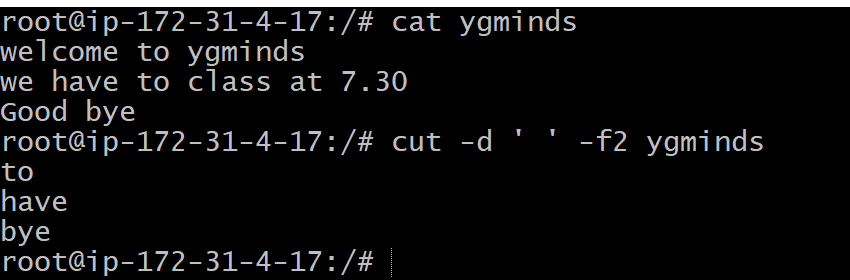
Using Space As Delimiter
cut -d ‘ ‘ -f2 ygminds
Cut by byte
cut -b <byte number> <file name>
cut -b 2 ygminds

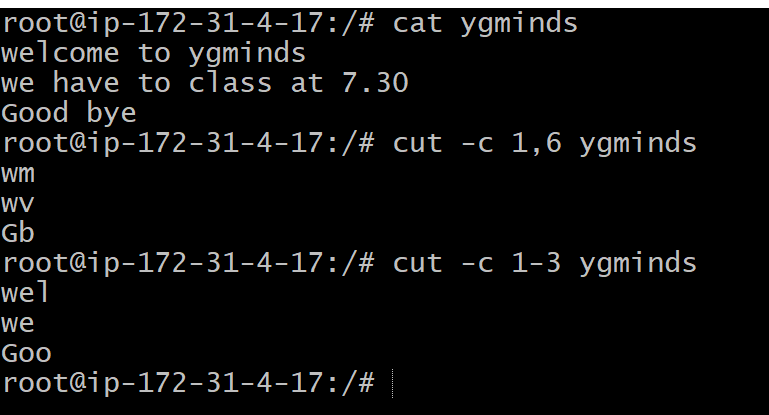
Cut by Character
cut -c < characters> <file name>
cut -c 1,6 ygminds
cut -c 1-3 ygminds
Linux grep
The ‘grep’ command stands for “global regular expression print”. grep command filters the content of a file which makes our search easy.
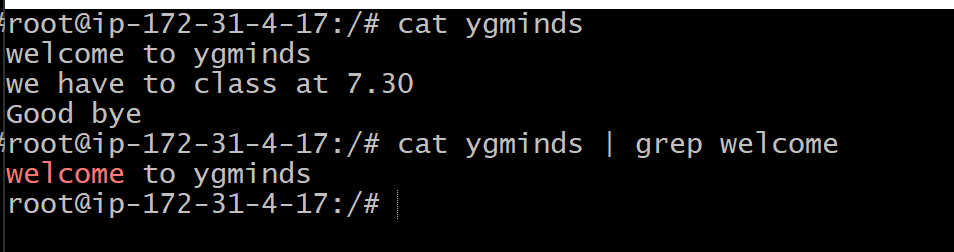
grep with pipe
The ‘grep’ command is generally used with pipe (|).
cat ygminds | grep welcome
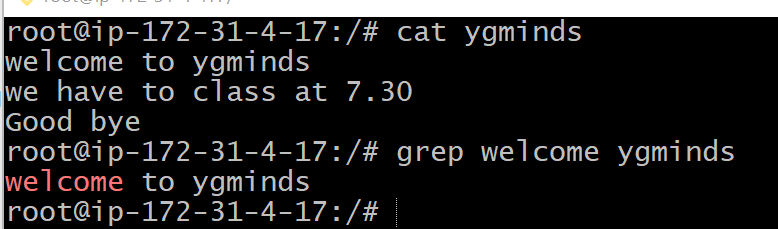
grep without pipe
grep <searchWord> <file name>
grep welcome ygminds
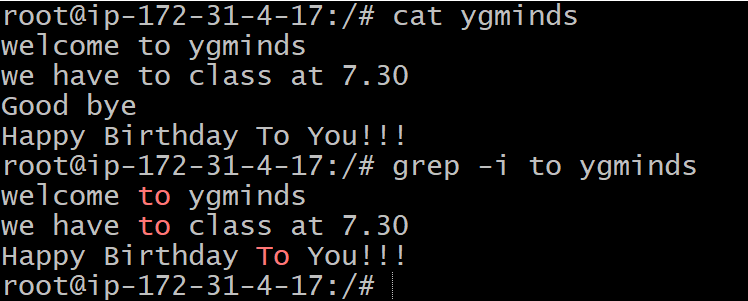
- grep -i: The ‘grep -i’ command filters output in a case-insensitive way.
grep -i <searchWord> <fileName>
Linux comm-
The ‘comm’ command compares two files or streams. By default, ‘comm’ will always display three columns. First column indicates non-matching items of first file, second column indicates non-matching items of second file, and third column indicates matching items of both the files. Both the files has to be in sorted order for ‘comm’ command to be executed.
comm <file1> <file2>
Ex – comm file1.txt file2.txt

Linux sed Command | Linux Stream Editor-
Linux ‘sed’ command stands for stream editor. It is used to edit streams (files) using regular expressions. But this editing is not permanent. It remains only in display, but in actual, file content remains the same.
sed [OPTION]… {script-only-if-no-other-script} [input-file]…
Global Replacement
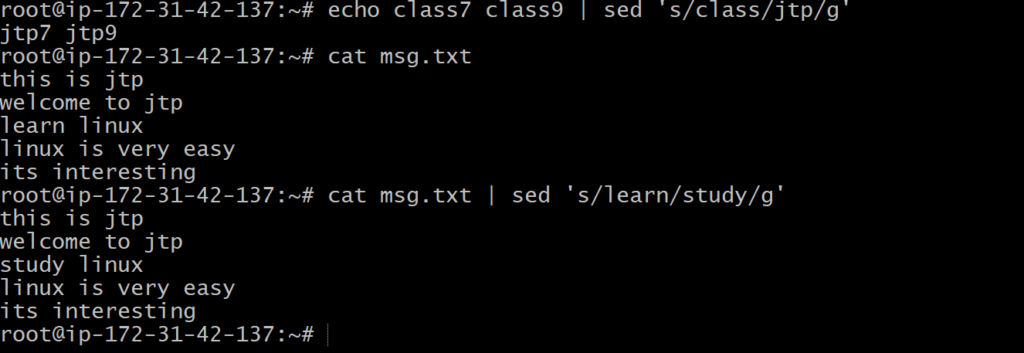
In the earlier example, all ‘learn’ words were not edited into ‘study’. To edit every word, we have to use a global replacement ‘g’. It will edit all the specified words in a file or string.
Syntax
command | sed ‘s/<oldWord>/<newWord>/g’
Consider the below examples:
- echo class7 class9 | sed ‘s/class/jtp/g’
- cat msg.txt | sed ‘s/learn/study/g’
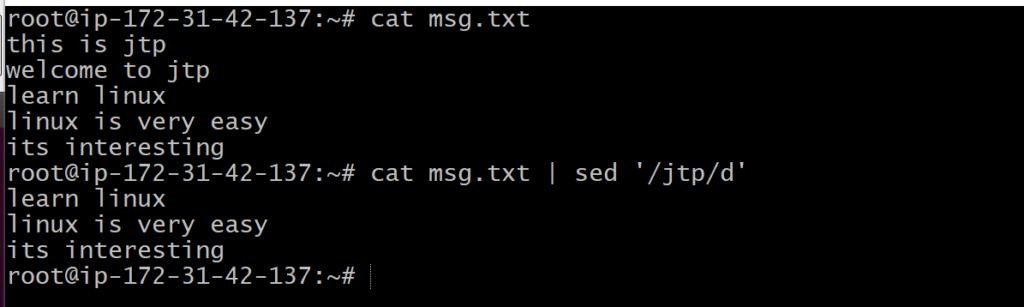
The above command will delete the lines having the word ‘jtp’. Consider the below output:
Removing a Line –
The ‘d’ option will let us remove a complete line from a file. We only need to specify a word from that line with ‘d’ option, and that line will be deleted. But, note that all the lines having that same word will be deleted. It will be executed as:
cat <fileName> | sed ‘/<Word>/d’
Ex. cat msg.txt | sed ‘/jtp/d’
Replacing Characters –
sed ‘s!/bin/bash!/bin/csh!’ /etc/passwd
We can use the exclamation mark (!) as a string delimiter. For example, we want to replace bash shell and replace it with csh shell in the “/etc/passwd”. To do so, execute the below command:
sed ‘s!/bin/bash!/bin/csh!’ /etc/passwd
Limiting the sed
The basic use of the sed command process the entire file. But, we can limit the sed command and specify any line. There are two ways to limit the sed command:
- A range of lines.
- A pattern that matches a specific line.
sed ‘3s/Red/Blue/’ exm.txt
The above command will apply the specified operation on the third line

From the above output, only the line three is modified.
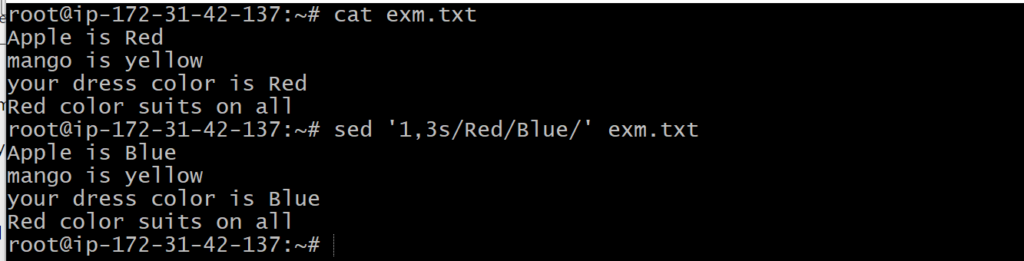
We can also specify a range of lines. To specify a range of lines, execute the command as follows:
sed ‘1,3s/Red/Blue/’ exm.txt
The above command will update the specified text in lines 1 and 3. Consider the below output:
Modifying Lines –
The ‘c’ flag is used to modify a specific line. To modify a line, execute the command as follows:
sed ‘3c\This is a modified line.’ exm.txt
The above command will update the line three. Consider the below output:

Linux wc Command-
Linux wc command helps in counting the lines, words, and characters in a file. It displays the number of lines, number of characters, and the number of words in a file. Mostly, it is used with pipes for counting operation.
wc <file name>
The above command will display the number of lines, number of words, number of bytes, and file name from the file ‘exm.txt’. Consider the below output:

Display count information of multiple files-
To display the complete count information of multiple files at once, specify the file names after space (‘ ‘). It is executed as follows:
wc <file1> <file2>
wc exm.txt marks.txt
The above command will display the number of words, the number of characters, and the number of the bytes from the files ‘exm.txt’ and ‘msg.txt’. Consider the below output:

Display the number of lines in a file-
The ‘-l’ option is used to display the number of lines in a file. It is executed as follows:
wc – l <file name>
wc -l exm.txt

Display the number of characters in a file-
The ‘-m’ option is used to display the number of characters in a file. It is executed as follows:
wc -m <file name>
Display the number of words in a file –
The ‘-w’ option is used to display the total number of words from a file. It is executed as follows:
wc -w <file name>
wc -w exm.txt
The above command will display the total number of words from the file ‘exm.txt’. Consider the below output:

Count the number files in a directory –
To count the number of files and folders in a directory, combine the wc command with the ls cmd. Execute it as follows:
ls | wc -l
The above command will display the count of the files from the current working directory. Consider the below output:

==========================================================================
What is the awk command?
awk is a scripting language, and it is helpful when working in the command line. It’s also a widely used command for text processing.
When using awk, you are able to select data – one or more pieces of individual text – based on a pattern you provide.
For example, some of the operations you can do with awk are searching for a specific word or pattern in a piece of text given, or even select a certain line or a certain column in a file you provide.
It looks something like this:
awk ‘{action}’ your_file_name.txt
When you want to search for text that has a specific pattern or you’re looking for a specific word in the text, the command would look something like this:
awk ‘/regex pattern/{action}’ your_file_name.txt
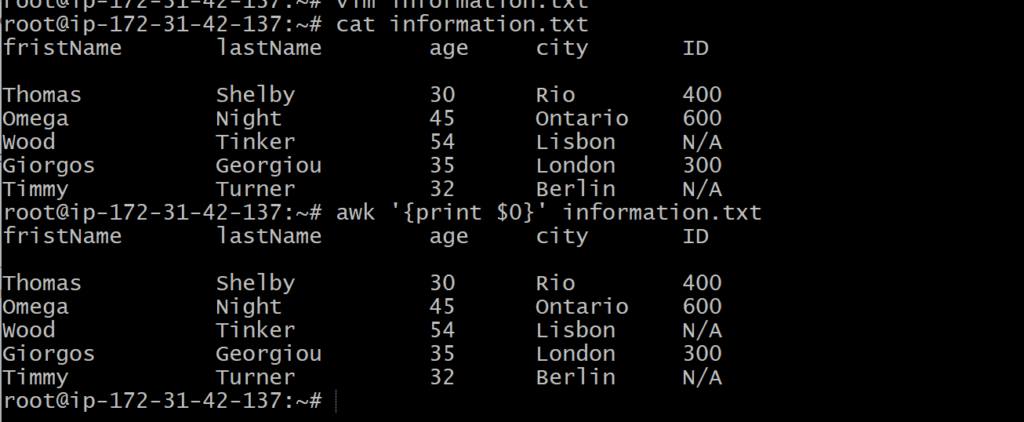
To print all the contents of a file, the action you specify inside the curly braces is print $0.
This will work in exactly the same way as the cat command mentioned previously.
awk ‘{print $0}’ information.txt
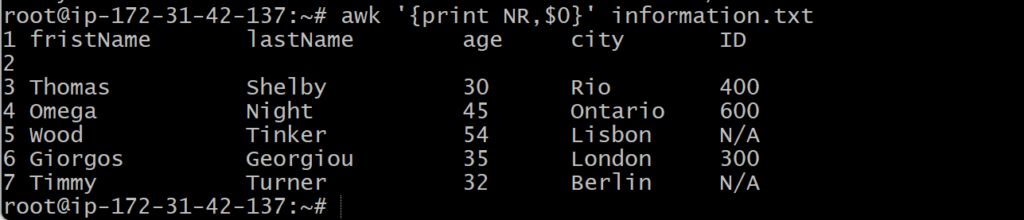
If you would like each line to have a line-number count, you would use the NR built-in variable:
awk ‘{print NR,$0}’ information.txt
How to print specific columns using awk?
When using awk, you can specify certain columns you want printed.
To have the first column printed, you use the command:
awk ‘{print $1}’ information.txt

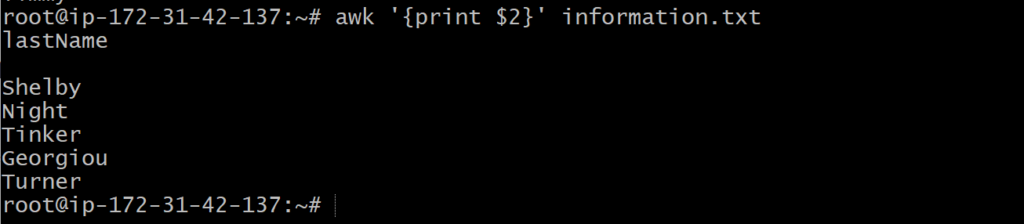
To print the second column, you would use $2
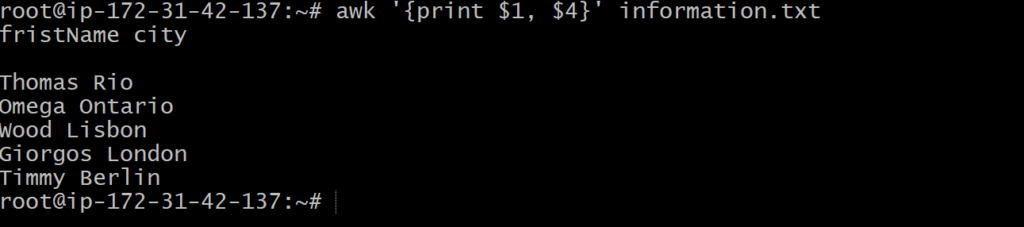
To print more than one column, for example the first and forth columns, you would do:
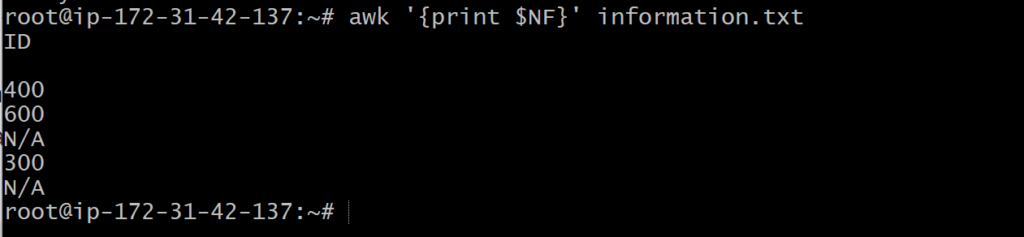
To print the last field (the last column), you can also use $NF which represents the last field in a record:
How to print specific lines of a column?
You can also specify the line you want printed from your chosen column:
awk ‘{print $1}’ information.txt |head-1

How to print out lines with a specific pattern in awk?
You can print a line that starts with a specific letter.
awk ‘/^O/’ information.txt
awk ‘/^W/’ information.txt

You can also print a line that ends in a specific pattern:
awk ‘/0$/’ information.txt
