There are many commands which help to look at the contents of a file. Now we’ll look at some of the commands like head, tac, cat, less & more and strings.
| Commands | Function |
| head | It displays the beginning of a file. |
| tail | It displays the last part of a file. |
| cat | This command is versatile and multi worker. |
| tac | Opposite of cat. |
| more | Command line diaplays contents in pager form that is either in more format. |
| less | Command line diaplays contents in pager form that is either in less format. |
- To display the file content, execute the cat command as follows:
cat <file name>
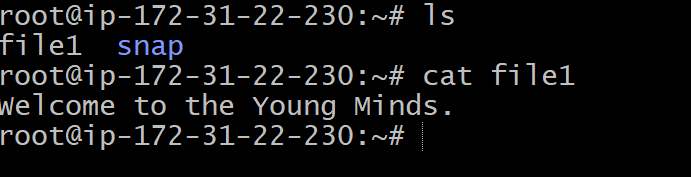
- Let’s create a file to understand how to open a file. Execute the below command:
cat > Test.txt
This is a Test file.

- To display the file content by the more command, execute it as follows:
more test.txt
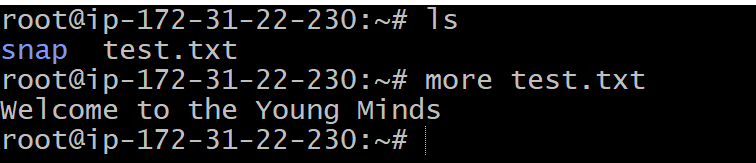
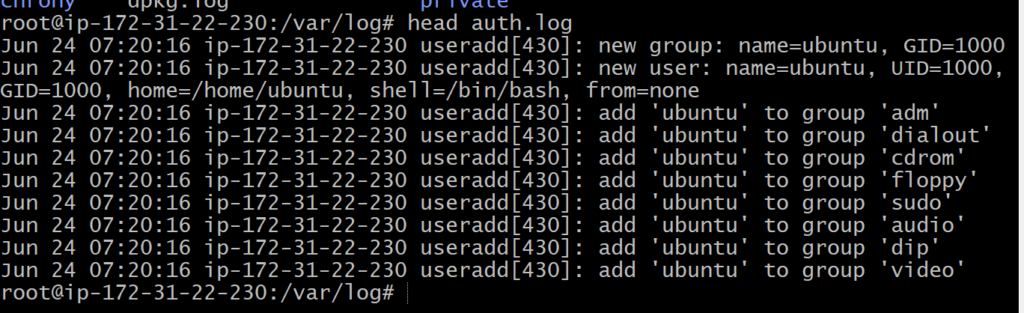
- We can display the file content by using the head command, but it is slightly different than others. It displays the first part of files via standard input. By default, it displays the first ten lines of the files. It starts reading the file from the head (first line).
head < file name>
head -15 < file name>
- The tail command is similar to the head command. The difference between both commands is that it starts reading the file from the tail (last line). Similar to head command, it also displays the output of the last ten lines by default.
tail <file name>
tail -15 <file name>
Linux Edit file
Linux file system allows us to operate various operations on files like create, edit, rename, remove. We can edit files by different Linux editors like vim, nano, Emacs, Gedit, Gvim, and more.
How to edit files in Linux
Let’s understand how to edit files on a Linux server over different text editors.
Edit files with VI editor
The VI editor is the most widely used text editor in Linux based systems. The Vi editor has various modes like normal mode, insert mode, command mode, line mode, and more. Each mode allows us to operate its specific operations.
Before editing files, let’s understand how to switch a mode in Vi editor:
- Press the ESC key for normal mode.
- Press i Key for insert mode.
- Press :q! keys to exit from the editor without saving a file.
- Press :wq! Keys to save the updated file and exit from the editor.
- Press :w test.txt to save the file as test.txt
