find –
The find command is used to find a particular file within a directory. It also supports various options to find a file such as byname, by type, by date, and more.
The following symbols are used after the find command:
(.) : For current directory name
(/) : For root
find . -name “*.txt”

=====================================================================================
locate –
The locate command is used to search a file by file name. It is quite similar to find command; the difference is that it is a background process. It searches the file in the database, whereas the find command searches in the file system. It is faster than the find command. To find the file with the locates command, keep your database updated.
locate <file name>

===========================================================================================
date –
date

===========================================================================================
df –
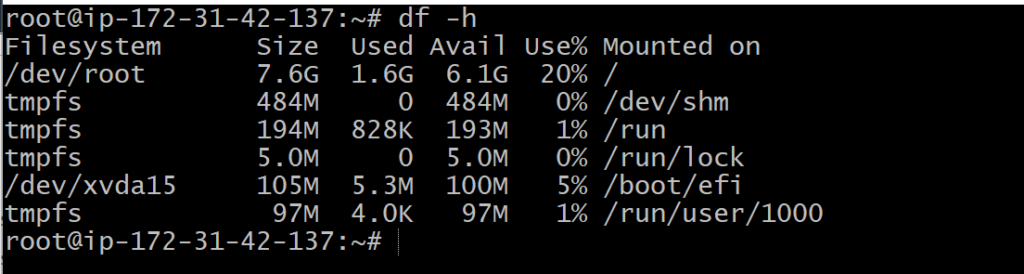
The df command is used to display the disk space used in the file system. It displays the output as in the number of used blocks, available blocks, and the mounted directory.
df -h
===========================================================================================
du –
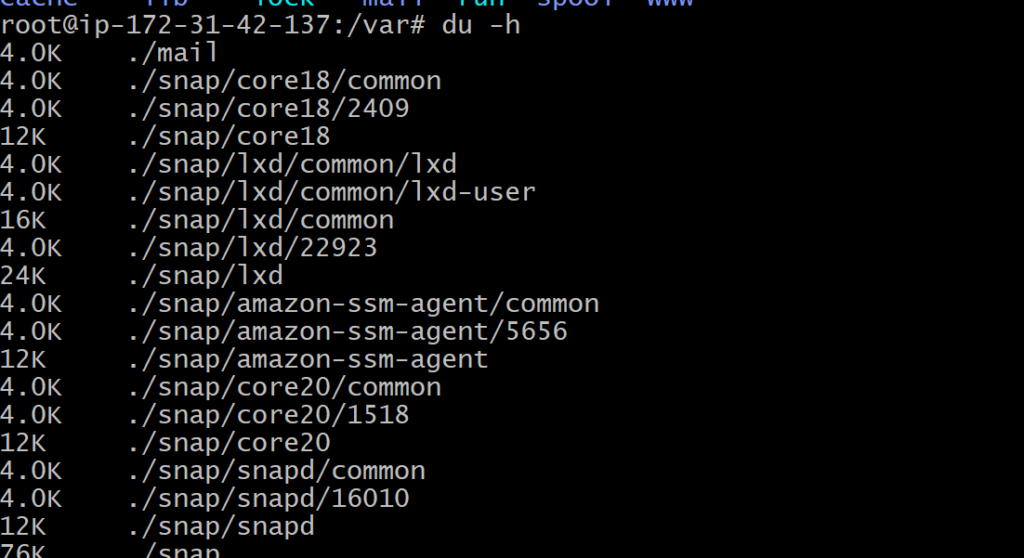
If you want to check how much space a file or a directory takes, the du (Disk Usage) command is the answer. However, the disk usage summary will show disk block numbers instead of the usual size format. If you want to see it in bytes, kilobytes, and megabytes, add the -h argument to the command line.
===========================================================================================
mount –
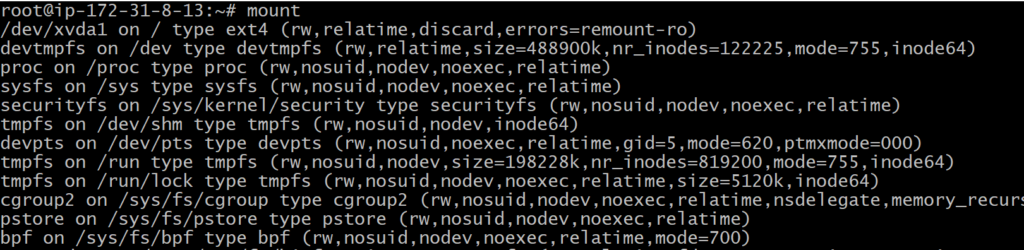
The mount command is used to connect an external device file system to the system’s file system.
mount -t type <device> <directory>
===================================================================================
mail –
mail -s “Subject” <recipient address>

=============================================================================================
Man –
man command in Linux is used to display the user manual of any command that we can run on the terminal.

==============================================================================================
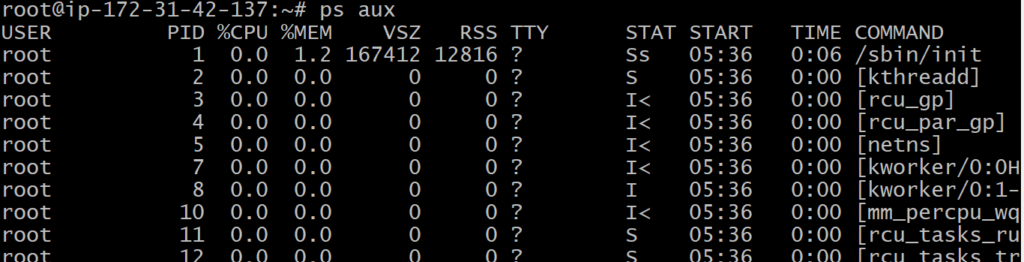
ps aux–
The ps (process status) command is one of the most frequently used commands in Linux. Usually it is used to get the more and detailed information about a specific process or all processes.
“aux” print all the running process in system regardless from where they have been executed.
==============================================================================================
kill–
If you have an unresponsive program, you can terminate it manually by using the kill command. It will send a certain signal to the misbehaving app and instructs the app to terminate itself.
There is a total of sixty-four signals that you can use, but people usually only use two signals:
SIGTERM (15) — requests a program to stop running and gives it some time to save all of its progress. If you don’t specify the signal when entering the kill command, this signal will be used.
SIGKILL (9) — forces programs to stop immediately. Unsaved progress will be lost.
Besides knowing the signals, you also need to know the process identification number (PID) of the program you want to kill. If you don’t know the PID, simply run the command ps ux.
After knowing what signal you want to use and the PID of the program, enter the following syntax:
kill [signal option] PID

==============================================================================================
Wget-
The Linux command line is super useful — you can even download files from the internet with the help of the wget command. To do so, simply type wget followed by the download link.

=============================================================================================
Uname –
The uname command, short for Unix Name, will print detailed information about your Linux system like the machine name, operating system, kernel, and so on.

==========================================================================
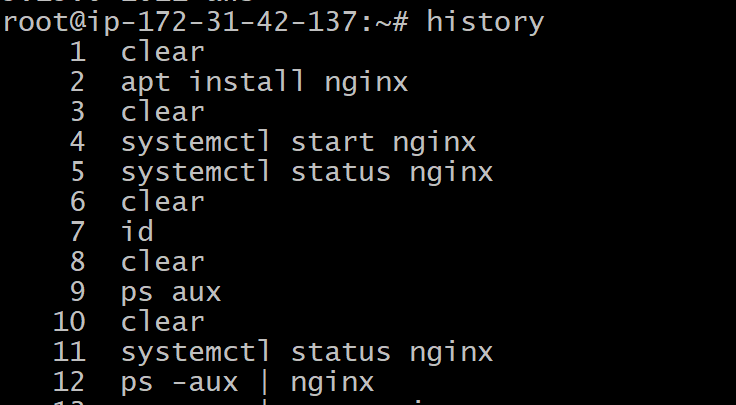
History –
When you’ve been using Linux for a certain period of time, you’ll quickly notice that you can run hundreds of commands every day. As such, running history command is particularly useful if you want to review the commands you’ve entered before.
==========================================================================
Top –
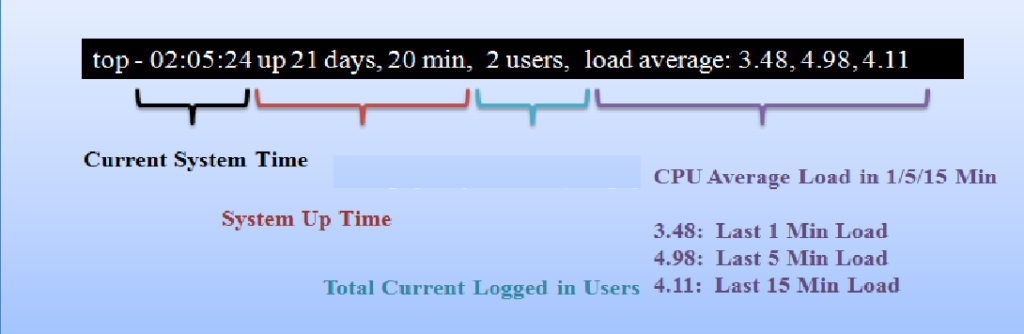
As a terminal equivalent to Task Manager in Windows, the top command will display a list of running processes and how much CPU each process uses. It’s very useful to monitor system resource usage, especially knowing which process needs to be terminated because it consumes too many resources.

- PID: Shows task’s unique process id.
- PR: The process’s priority. The lower the number, the higher the priority.
- VIRT: Total virtual memory used by the task.
- USER: User name of owner of task.
- %CPU: Represents the CPU usage.
- TIME+: CPU Time, the same as ‘TIME’, but reflecting more granularity through hundredths of a second.
- SHR: Represents the Shared Memory size (kb) used by a task.
- NI: Represents a Nice Value of task. A Negative nice value implies higher priority, and positive Nice value means lower priority.
- %MEM: Shows the Memory usage of task.
- RES: How much physical RAM the process is using, measured in kilobytes.
- COMMAND: The name of the command that started the process